Kiosk for buying and selling singles

Sell more singles. Buy more from your community.

Give customers one place to browse your Shopify catalogue, build an order or submit cards through your buylist. Your team stays in control of picking, checking, grading, payment and payout.

Follow the workflow Book a demo
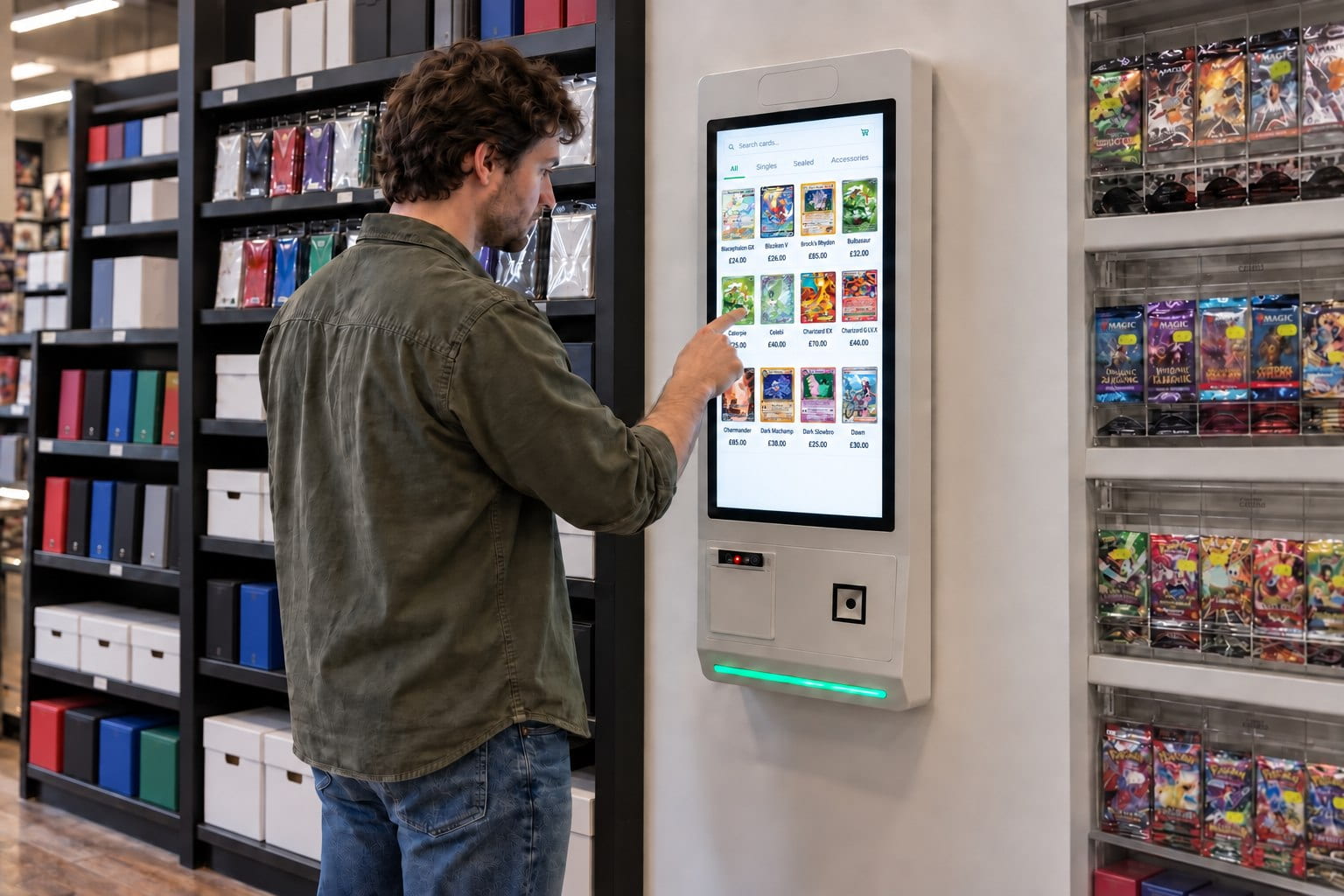
Illustration of customers at an in-store kiosk browsing a shop's singles catalogue on a wall-mounted touchscreen

01 Help customers buy

Put your full singles catalogue wherever customers are browsing.

A display cabinet can only show a fraction of the singles you have available. The kiosk gives customers a straightforward way to search the Shopify catalogue your team already manages.

Customers can narrow the results, compare cards and prices, choose the exact products they want and build a clear order for staff to fulfil.

Customer browsing a trading card store's Shopify singles catalogue on a Card Companion kiosk
More singles within reach: customers can browse the catalogue without needing staff to search for every card.

02 Help customers sell

Turn the same kiosk into an in-person buylist.

Customers can use the kiosk in your store or at a show to find the cards they want to sell, add quantities and compare estimated cash and store-credit offers.

Instead of beginning with an unsorted pile and no clear record, your team receives a structured buylist submission containing the cards, quantities, estimated values and selected payout method.

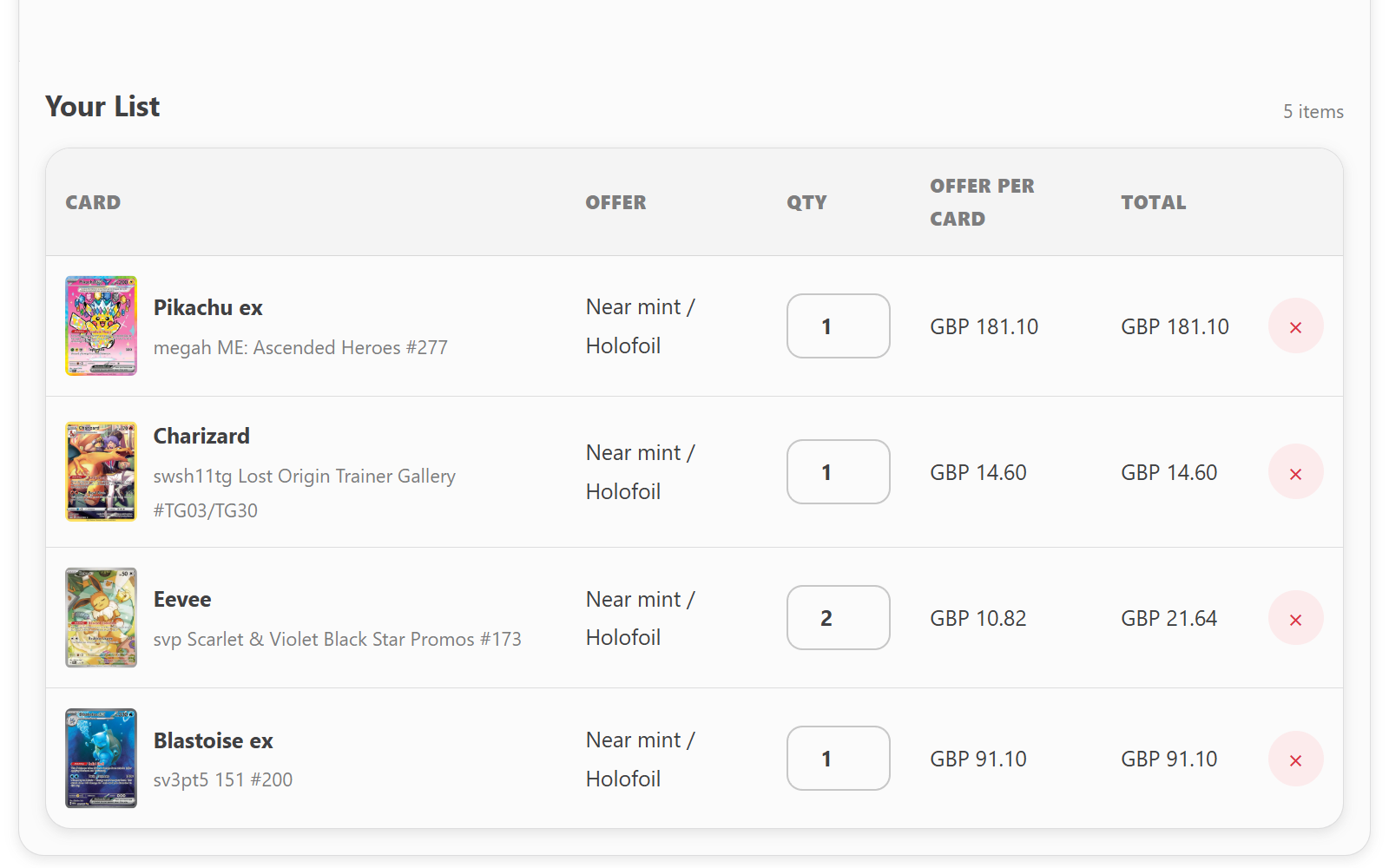
Customer preparing a trading card buylist submission with estimated cash and store-credit offers
A guided trade-in: customers prepare the card list before your team begins grading and reviewing the physical cards.

03 Keep staff in control

Customers prepare the request. Your team makes the final decision.

For a customer order, staff pick the cards, check the physical copies, take payment and complete the handover.

For a buylist submission, staff grade the cards, adjust the condition, quantity or value where needed, approve the final payout and move accepted cards into the Shopify inventory workflow.

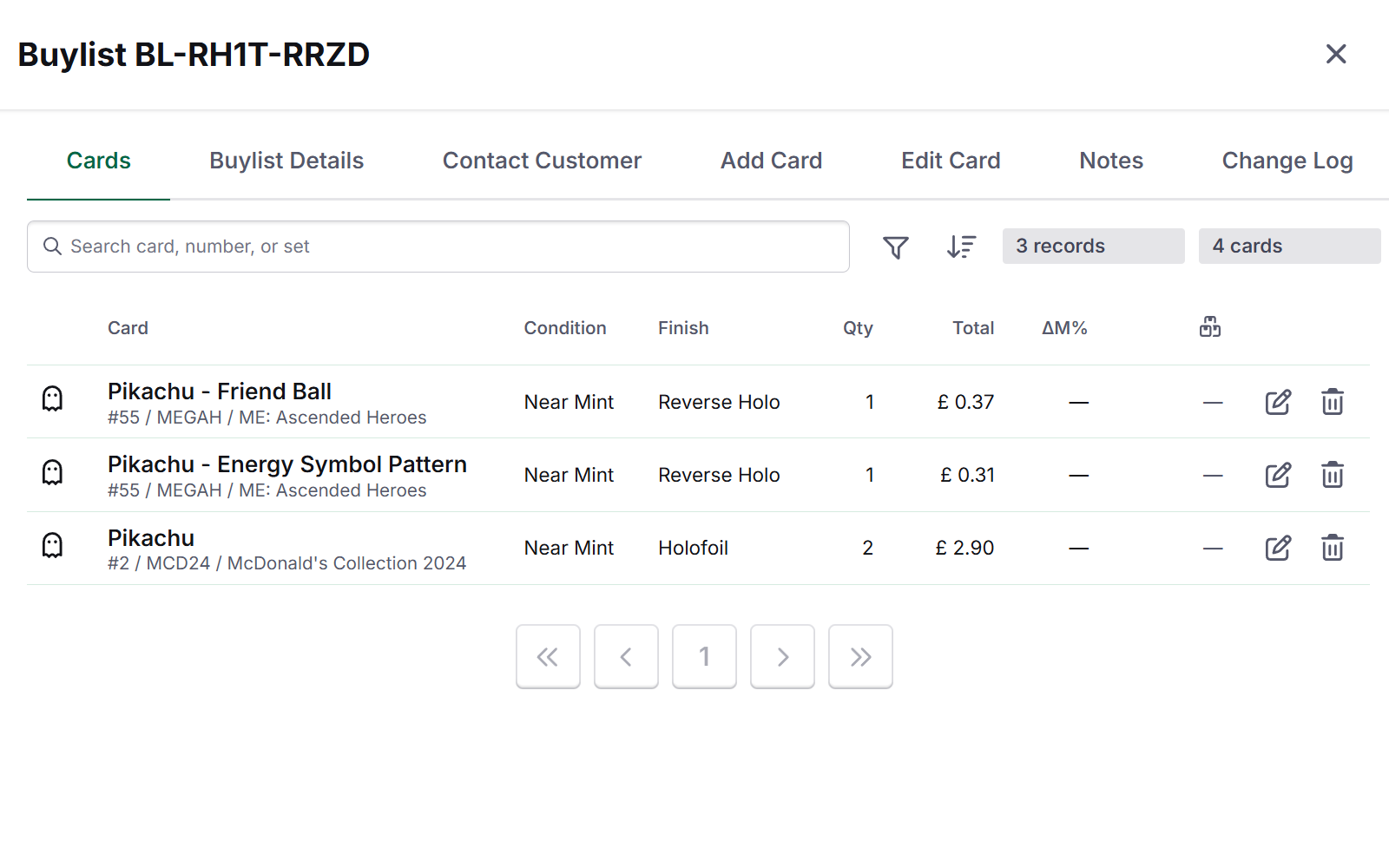
Card Companion buylist submission showing cards, quantities, estimated values and payout details for staff review
One organised record: staff can review what the customer submitted while retaining control of grading, approval and payout.

In-store kiosk questions

One kiosk for both sides of your singles counter.

Can customers use the kiosk to both buy and sell cards?
Yes. Customers can browse your Shopify catalogue and build an order, or switch to the buylist flow to prepare a submission of cards they want to sell to the store.
How does a customer submit cards through the kiosk?
The customer searches for each card, adds the quantity and compares the estimated cash and store-credit offers. Their selections are then sent to your team as an organised buylist submission.
Is the buylist estimate the final payout?
No. The kiosk provides an estimate based on the submitted cards. Your team checks the physical cards and can adjust the condition, quantity or value before approving the final payout.
Does the kiosk change our existing Shopify store?
No. The kiosk browses the Shopify catalogue your team already manages. Your products, theme, domain and checkout remain unchanged.
More kiosk questions
Can the kiosk be used at card shows?
Yes. The kiosk can give customers the same guided buying and buylist experience at a show as they receive in your store, subject to the hardware and connectivity available at the venue.
Does the kiosk use a separate product catalogue?
No. Customer browsing uses the Shopify catalogue your store already manages, so products and prices do not need to be maintained in a separate kiosk system.
Does the kiosk replace store staff?
No. It helps customers find products and prepare accurate orders or trade-in submissions. Staff still pick and check sales orders, grade buylist cards and approve payments or payouts.
Does the customer have to pay at the kiosk?
No. Payment can remain at the till. Stores with a compatible Stripe Terminal can configure a kiosk payment route where that setup is appropriate.
Can accepted buylist cards be added to Shopify inventory?
Yes. Once the submission has been reviewed, accepted cards can move into the inventory workflow with the condition, language and finish confirmed by your team.

Plan a kiosk around your counter.

We’ll shape the browse, buy and trade-in journey around your customers and the way your team works.

Plan my kiosk setup